OffiDocs platforms continues enhancing the end user experience with more applications. OffiDocs has signed an agreement with the RedcoolMedia and DandroidMobile platforms and their technology. Both platforms will be integrated in OffiDocs. This integration is the OffiDocs commitment to continue improving our free apps.
We are excited about these two acquisitions and all the opportunities that it gives to our end users:
RedcoolMedia (https://www.redcoolmedia.net) is a very consolidated platform that provides web applications for productivity, video, audio, images and messaging. It is the perfect match to integrate a web app alternative to each OffiDocs web app.
DandroidMobile (http://www.dandroidmobile.com) is a team that provides Android apps using VNC and RDP connections to a remote desktop where applications can be run. It is also perfect to improve the OffiDocs android apps.
Safari Browser Web extension for creating and editing xls excel spreadsheets. Web extension available in the Apple Safari Extensions Gallery:
This Safari extension has the same functionality that our extension for Chrome and FireFox. It allows to create, edit and view any Microsoft Excel document in both XLS and XLSX format. It also handles the standard Open Office format ODS. It is an integration with LibreOffice Online and a file manager. You need to use only your Apple Safari Web browser.
The main features of Excel XLS Editor online for Apple Safari are:
- A direct link to create xls, xlsx or off spreadsheets with this Excel XLS Editor.
- It intercepts when you access to xls, xlsx, csv or odf spreadsheets, and it automatically opens it directly using this Excel XLS Editor.
- Edit and view XLS spreadsheets written using OpenOffice Calc, LibreOffice Calc or Microsoft Excel.
- Supports multiple formats for spreadsheets that are detailed here https://wiki.openoffice.org/wiki/Documentation/OOo3_User_Guides/Getting_Started/File_formats.
* Microsoft Excel 97/2000/XP (.xls)
* Microsoft Excel 4.x–5.0/95 (.xls)
* Microsoft Excel 2007 XML (.xlsx)
* LibreOffice ODF spreadsheet (.ods)
* OpenOffice ODF spreadsheet (.ods)
* Text and CSV (.csv and .txt)
- Handle files and directories in the Cloud.
- Operations with files and folders: copy, move, upload, create folder/file, etc
You can edit audios online with our app Audacity Online hosted in OffiDocs. Click in the following button to edit or convert audio files:
Audacity for OffiDocs is a free online audio editor as good as many premium paid-for applications. It can be used to import your own audios, remove noise, cut and combine clips, apply special audio effects and much more, and achieve professional results. Audacity online has multiple audio effects and integration with other applications. Whether you are making music, podcasts, or audio books, Audacity in OffiDocs is a very good tool to edit audios or music online.
Audacity main features supported by OffiDocs:
- Import and Export. Import sound files, edit them, and combine them with Other files or new recordings. Export your recordings in many different file formats, Including multiple files at once .
* Import and export WAV, AIFF, AU, FLAC and Ogg Vorbis files.
* Fast “On-Demand” import WAV or AIFF files of (letting you start work Immediately With The files almost) if read from Directly source.
* Import and export all formats supported by libsndfile Such as GSM 6.10, 32-bit and 64-bit float WAV and U / A-Law.
* Import MPEG audio (including MP2 and MP3 files) using libmad .
* Import raw (headerless) audio files using the “Import Raw” command.
* Create WAV or AIFF files Suitable for burning to audio CD .
* Export MP3 Files with the optional LAME encoder library .
* Import and export AC3, M4A/M4R (AAC) and WMA With The optional FFmpeg library (this Also supports import of audio from video files).
- Sound Quality
* Supports 16-bit, 24-bit and 32-bit (floating point) samples (Latter preserves the samples in excess of full scale).
* Sample rates and formats are converted using high-quality resampling and dithering.
* Tracks with different sample rates or formats are converted Automatically in real time.
- Audio Editing online
* Easy Editing with Cut, Copy, Paste and Delete.
* Sequential Unlimited Undo (and Redo) to go back any number of steps.
* Edit and mix large numbers of tracks.
* Multiple clips per track are allowed.
* Label tracks with selectable Sync-Lock Tracks feature for keeping tracks and labels synchronized.
* Draw Tool to alter single sample points.
* Envelope Tool to fade the volume up or down smoothly.
- Audio effects
* Change the pitch without altering the tempo (or vice-versa).
* Remove static, hiss, hum or other constant background noises.
* Alter frequencies with Equalization, Bass Boost, High / Low Pass and Notch Filter effects.
* Adjust volume with Compressor, Amplify, Normalize, Fade In / Fade Out and Fade Adjustable effects.
* Remove Vocals from Suitable stereo tracks.
* Create voice-overs for podcasts or DJ sets using Auto Duck effect.
Other built-in effects include:
* Echo
* Phaser
* Wahwah
* Paulstretch (extreme stretch)
* Reverse
* Truncate Silence
- Audio online Analysis
* Spectrogram view modes for visualizing frequencies.
* “Plot Spectrum” command for detailed frequency analysis.
* “Sample Data Export” for exporting to file Containing amplitude values for each sample in the selection.
* Contrast Analysis for analyzing volume average rms Differences Between foreground speech and background music.
Web extension that provides the video editor and video converter, Avidemux online. Web extension available in Chrome WebStore and FireFox Addon:
Avidemux is a free online video editor and an online video converter. It provides multiple functionalities for video edition online such as encoding (convert videos from one format to another), cutting (cut individual portions from a video) or filtering (resize, deinterlacing, add subtitles, color correction, etc.). It offers support for a lot of codecs and files: AVI, MP4, ASF, DVD, MPEG, MKV. It is a well known free video editor when a user needs to perform video editing.
Its main features are:
- Support non-linear video editing, visual effects, and transcoding
- Support for muxing (multiplexing) and demuxing
- Support for subtitle formats: SUB, SSA, ASS, SRT
- A lot of filter options: auto-resize, gauss smoothing, deinterlacing, chromatic shifts, add black borders, etc.
- Support several output formats: MKV, Flash, AVI, MPEG-1/2, OGM, MP4, etc.
- Support a lot of Video encoders: MPEG-1, MPEG-2, FFHuffYUV, FFV1, H.263, H.263+, HuffYUV, MJPEG, MPEG-4, Snow, x264, x264, Xvid, Y800
- Support a lot of audio encoders: MPEG-1 Layer 3 (MP3), Vorbis, AAC, MPEG-1 layer 2 (MP2), AC-3, MPEG-1 layer 2 (MP2), Microsoft RIFF WAV PCM, LPCM
Additionally, this extension still includes the previous functionality, SeaMonkey, which is a full featured Internet suite. It is an all-in-one internet application suite that contains an Internet browser, email client, newsgroup client, web feed reader, HTML editor, IRC chat and web development tools.
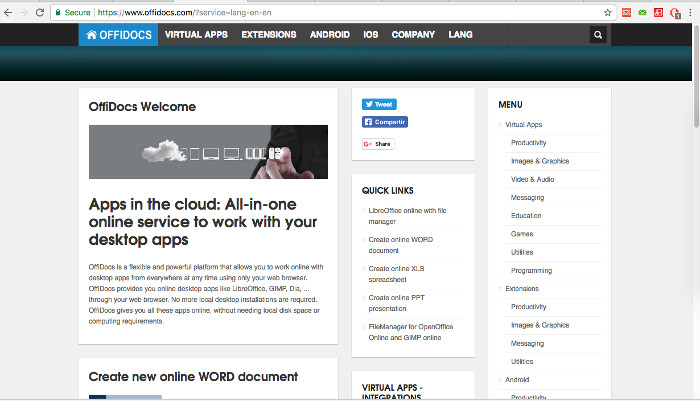
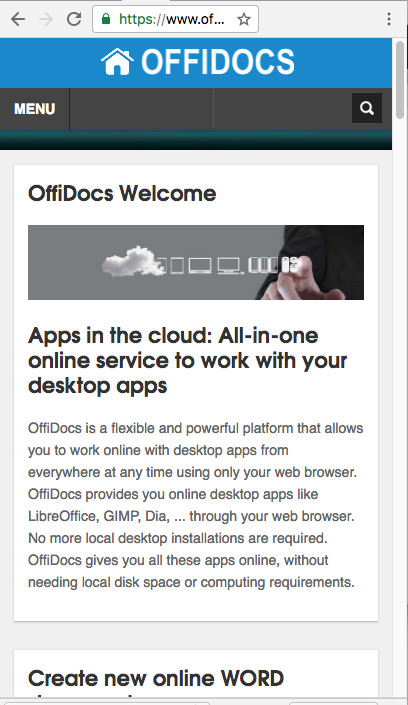
The Offidocs website has been enhanced with a new layout. It has now a Responsive web design so that its web pages can render well on a variety of devices and screen sizes..
The OffiDocs layout changes based on the size and capabilities of the device. For example, on a phone users sees our content and apps shown in a single column view; a tablet shows the same but in several columns.
The layout has changed but the the content and apps are the same. We do provide virtual linux applications like GIMP, OpenOffice, Inkscape. We do also provide Android, IOS, Extensions for Chrome and FireFox, integrations with several MarketPlaces, and a SDK for a quick integration with our web apps. The apps are categorized accorfing to the functionality offered.
The following pictures are screenshots of our new website layout:
The following tutorial shows how to handle the files when using the OffiDocs apps like GIMP, OpenOffice, Inkscape, Dia, ... All these OffiDocs application has a file manager feature that allows to upload, save, and modify your files with the OffiDocs app.
This tutorial uses OffiDocs GIMP online as an example, but it can be used as a reference for any other OffiDocs application like OpenOffice writer, OpenOffice impress, OpenOffice calc, Inkscape, Dia, Scribus, etc.
Note that this tutorial does not enter in each application functionality. GIMP, OpenOffice, Dia, etc have plenty of free tutorials in the Internet. This tutorial is focused in how OffiDocs handles the files for each of these applications.
1. Save your files
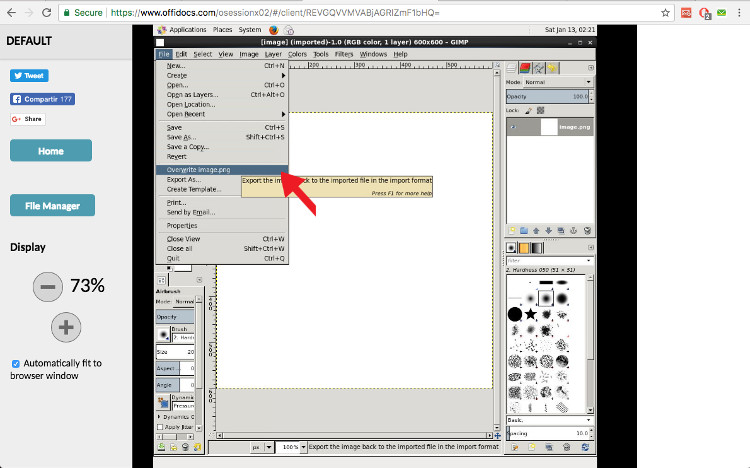
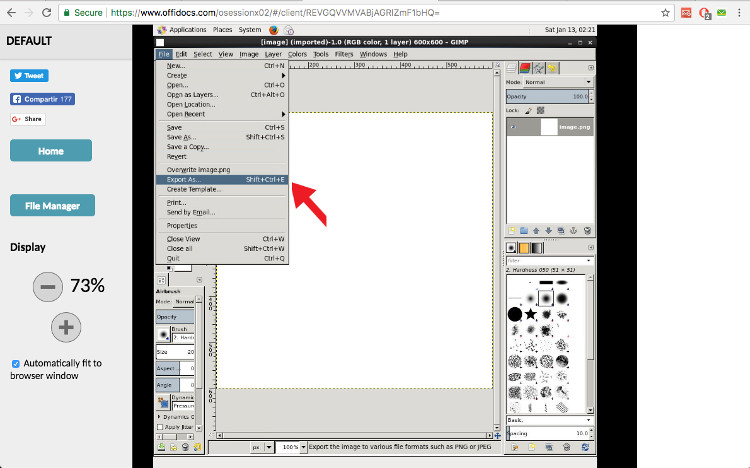
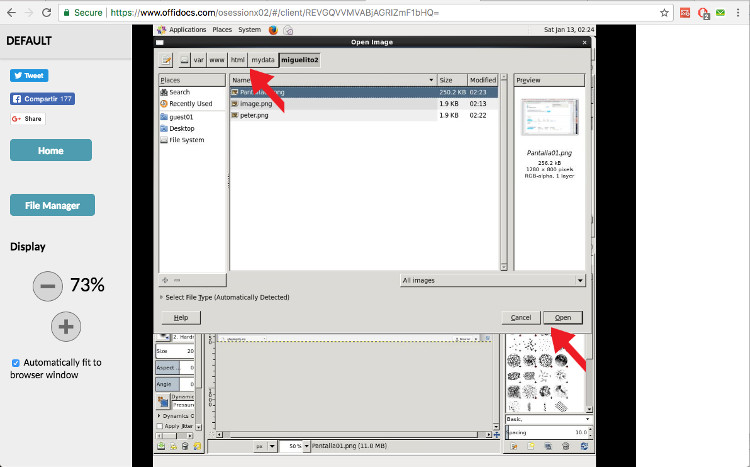
Once you have written or modify your files with an OffiDocs application, it is time to save it. Do it with the internal File option in each application. For example, in GIMP, you can use "File -> Export" or "File -> Save as" but take into account that you must save the file in your default directory assigned:
/var/runxx/uploadxx/[your id]
or
/var/www/html/mydata/[user id]
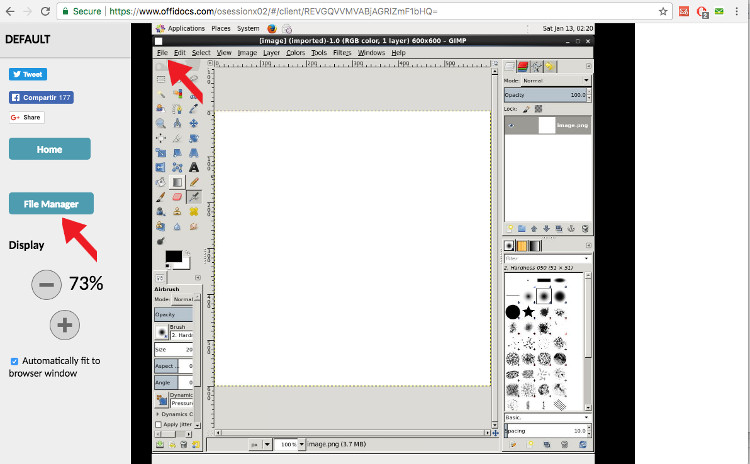
Do not use any other directory. The "File manager" button provided by OffiDocs in the webpage is a link to that default path. If you save your file in another directory you will not be able to handle it.
2. Modify your existing files
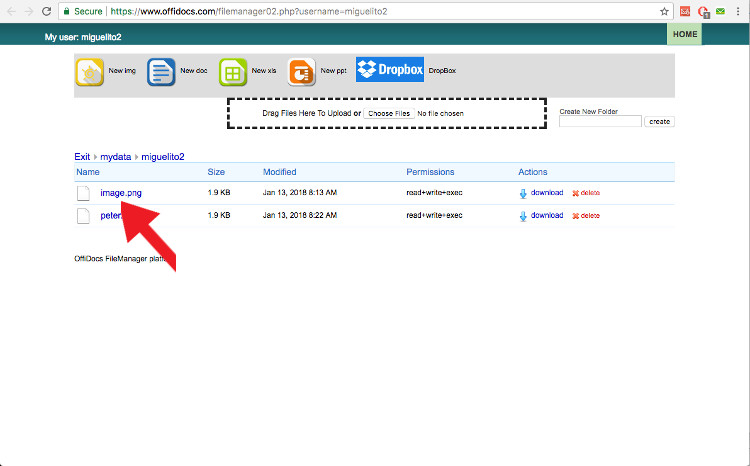
Click in the button file manager to access to your files, and the webpage "file manager" will appear. The way to modify the files is very easy, click over one of them and OffiDocs will open the file with the default OffiDocs application.
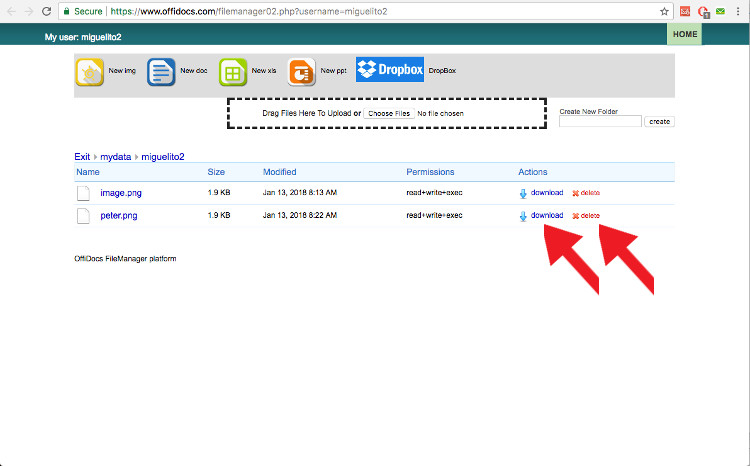
3. Download or delete your files
From the File Manager webpage you can also have the functionalities to download and delete your files. If you do access to OffiDocs with the free version, please download your files to save them in your local computer. We remove all the files when the session is not actives during 24 hours as this is a shared environment.
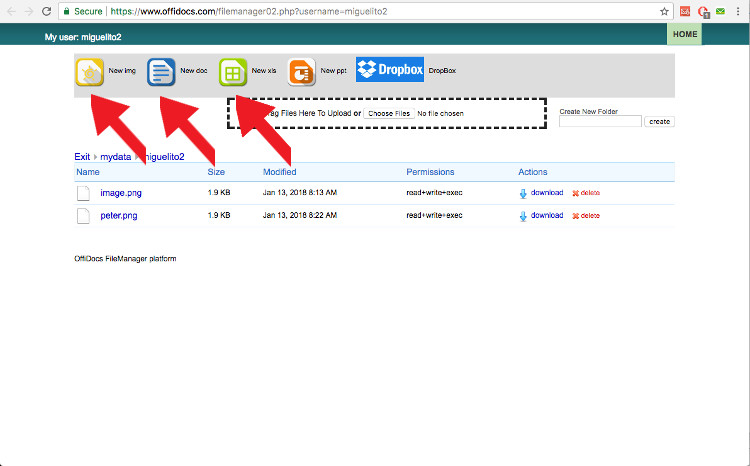
4. Create new documents or images
From the File Manager webpage you can also create images, documents, excel spreadsheets and powerpoints. You have the following buttons to create them.
5. Dropbox integration
From the File manager webpage you can also view and modify your DropBox documents. There is a button inside the File manager webpage that will allow you to do it.
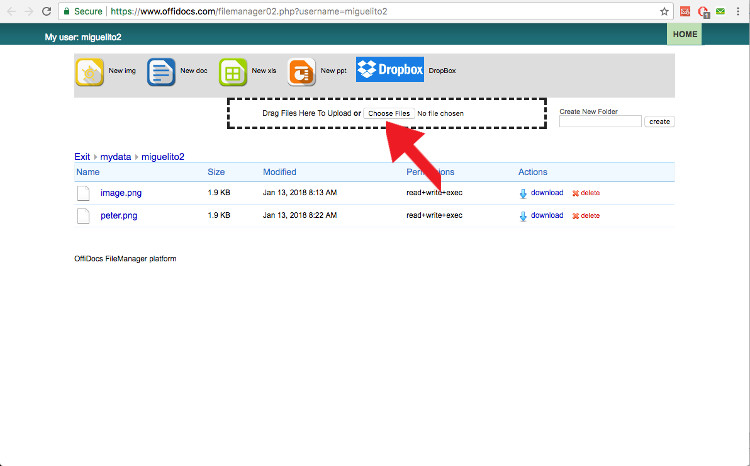
6. Upload your local files
From the File manager webpage you can also upload your document files that are in your computer. Click in the button "choose file" to upload them. Once the upload is confirmed the new files will appear in the File manager web page.
OffiDocs has delivered a new functionality that integrate the LibreOffice Online apps with our free email service named OffiLive:
Share via email the OffiDocs doc, xls and ppt created with LibreOffice online
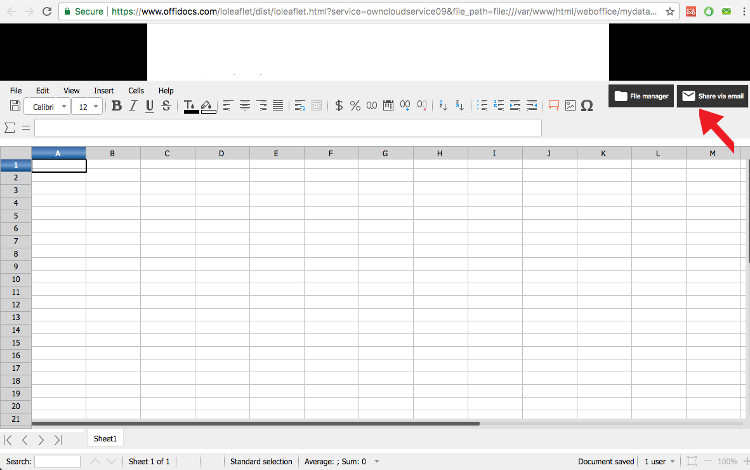
Our LibreOffice Online based applications OffWord, OffiXLS and OffiPPT includes a new button that allows you to share your active document via email.
When click in this button "Share via email" the application will redirect you to our OffiLive free email service. If you do not have an account yet, you can sign up for it.
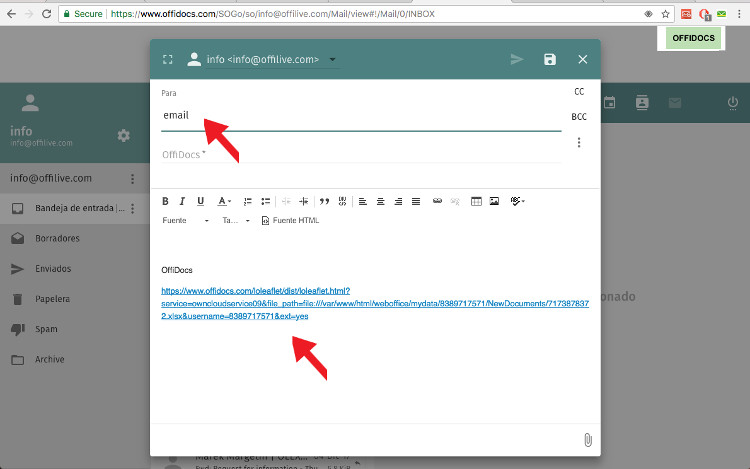
Just when you have login to your OffiLive email account, the email composer popup will appear. It will include a link to your OffiDocs LibreOffice Online documents, XLS or PPT. You will be able to send this link to any of your friends. And your friends will be able to access to your document, and even edit it.